How it works
From a destination to a route you can drive
Six steps, in the order you meet them. Each one is a screen in the app.
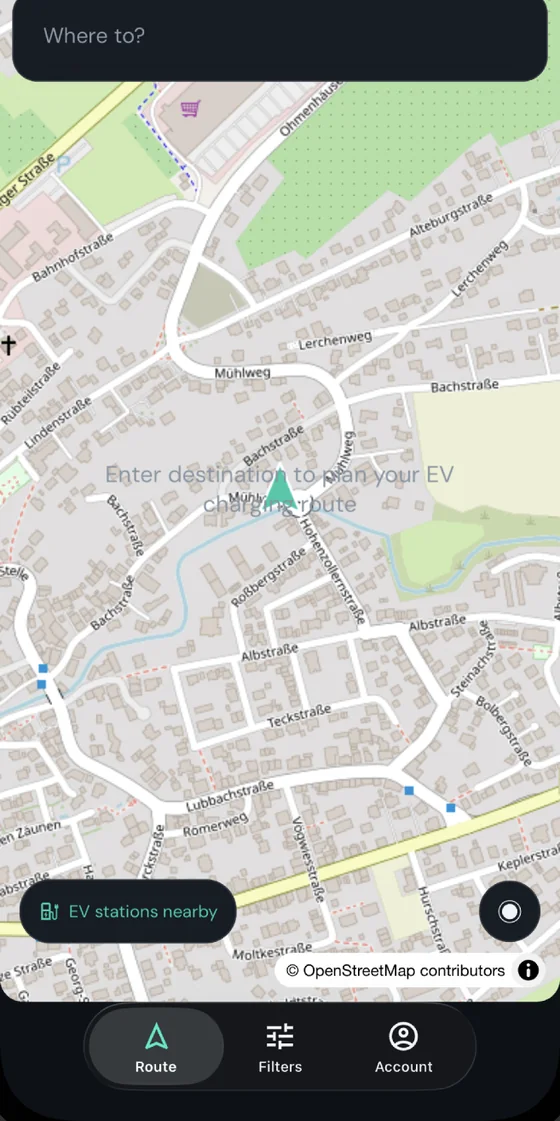
01Route tab
Enter a destination
Planning starts from your position and a destination. SparkRoute looks up every charging station along each candidate route so the comparison is built on what is actually there.
- Search for a destination —
- type an address and pick it from the results. Your current position is the default start.
- Start conditions —
- current battery percentage and the reserve you want on arrival.
- Vehicle profile —
- battery capacity and accepted charge rate come from your saved car.
02Route options
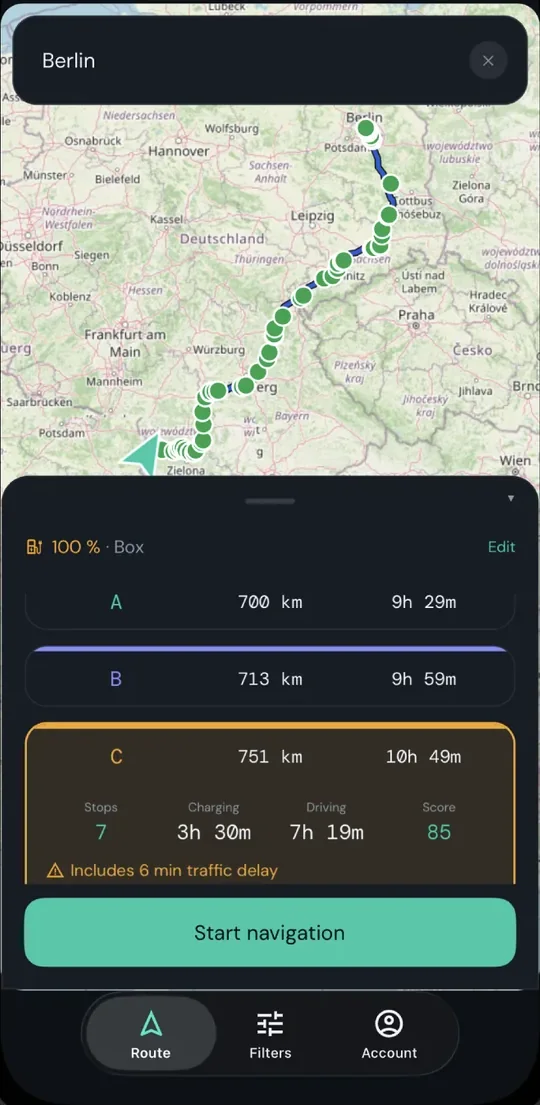
Compare up to three scored routes
Up to three routes come back, each scored on the charging actually available along it, with the number of stops your car will need. No stop is placed for you.
- Route score —
- one number out of 100, weighted across the gaps between usable stations, your preferred providers, charging power, availability and amenities.
- Summary metrics —
- distance, driving time, charging time and the recommended stop count for your vehicle.
- Recommended stops —
- how many the trip needs, not where you must stop. Choosing them stays yours.
03Station detail
Add the stops you want, whenever you want
Browse every station along the route and add one as a stop — before you set off or halfway through the drive. Each opens into the station itself: who runs it, how fast it charges, how many ports, and what is within walking distance.
- Ports and power —
- peak kW per connector, weighted against what your car can actually take.
- Amenities —
- food, toilets, shopping, playground and Wi-Fi, so you can see what a longer stop would be like.
- Add or remove, any time —
- what you add shows as a planned stop, and an unreached one can be dropped again.
04Filters tab
Constrain the search before it scores
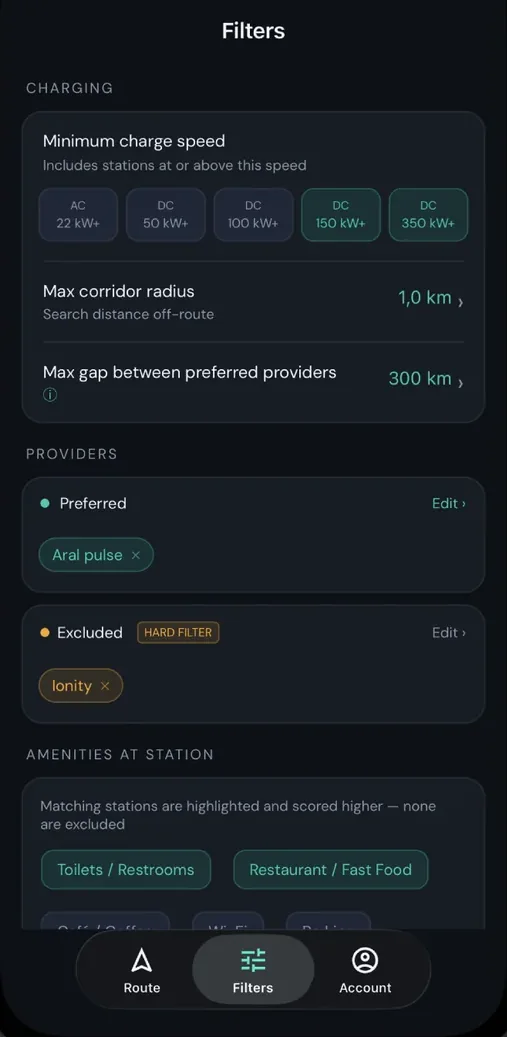
Filters cut the candidate set, so unwanted stations never appear — not even as a fallback.
- Max corridor radius —
- the search distance off-route. Wider finds more stations but adds detour time.
- Minimum charge speed —
- stations below your kW floor are dropped before scoring runs.
- Excluded providers —
- a hard filter. They are removed from the route calculation entirely and never come back.
- Preferred providers —
- a soft filter. It removes nothing: the list thins down to your providers, and where the distance between two of them exceeds the gap you allow, other stations reappear inside that stretch so you are never left without a charger.
- Apply and recalculate —
- filters never silently change an active route; you confirm.
05Active navigation
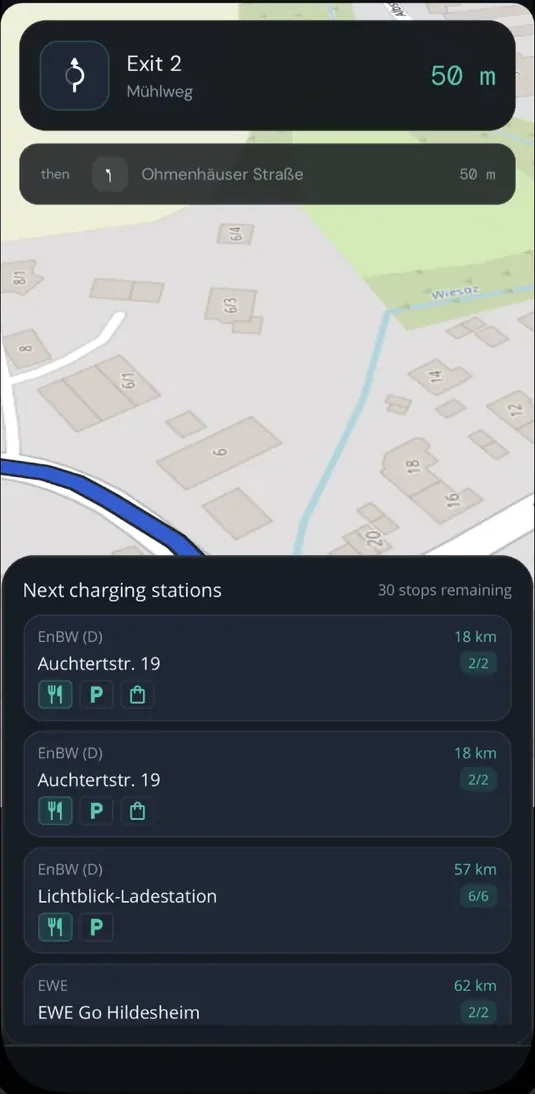
One glanceable surface while driving
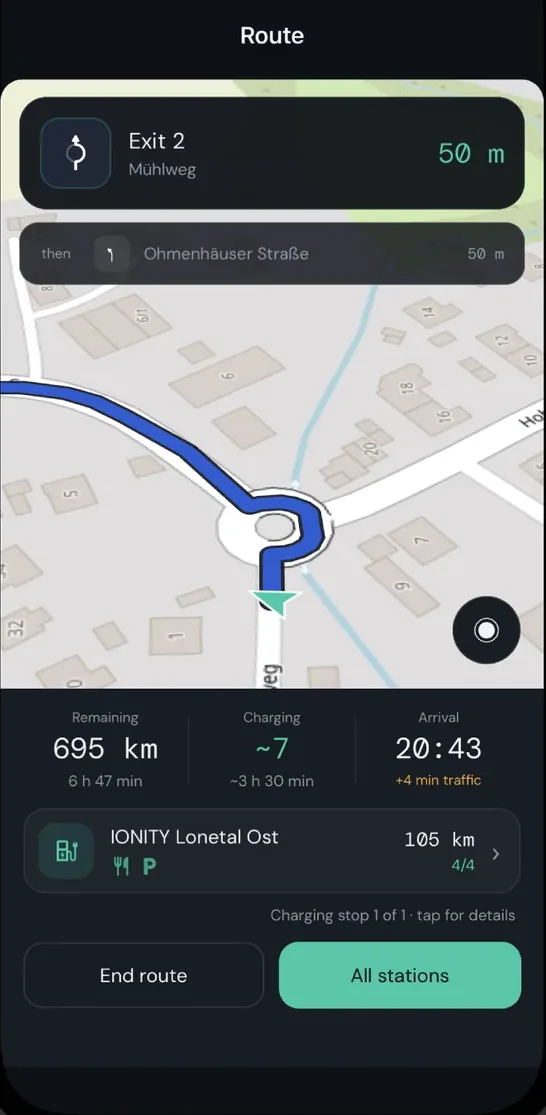
The navigation view shows the next maneuver, the distance to it, and your charging state. Stations along the route stay one tap away, so adding a stop mid-drive is never a detour into a menu.
- Turn card —
- the maneuver glyph plus distance, with the following turn as a small "then" row.
- Battery pill —
- predicted state of charge in amber, estimated from your vehicle's data and the level you last entered.
- Next stop —
- distance to the upcoming charger and the target charge level, always one tap away.
- Arriving at a stop —
- enter your real battery level and the recommended number of remaining stops is recalculated.
06Planned stops
Every stop you added, in one place
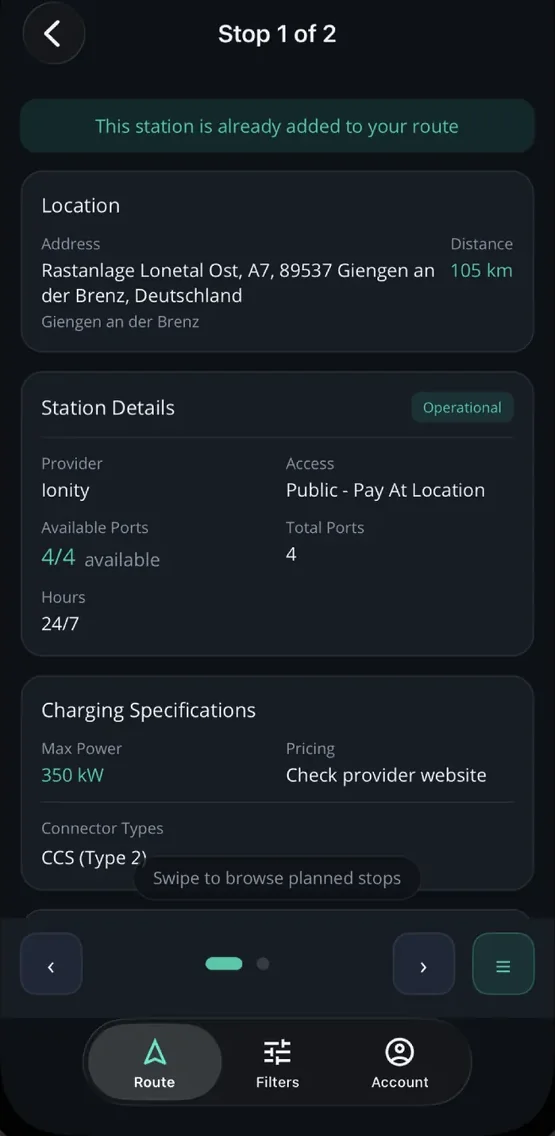
The stops you have added sit together in route order, so you can see the whole charging plan without leaving navigation.
- In route order —
- every stop you added, with how far away it is and the charge level you are aiming for.
- Open any stop —
- the same station detail as before you added it: provider, power, ports and what is nearby.
- Remove one —
- a stop you have not reached yet can be dropped, and the route carries on without it.
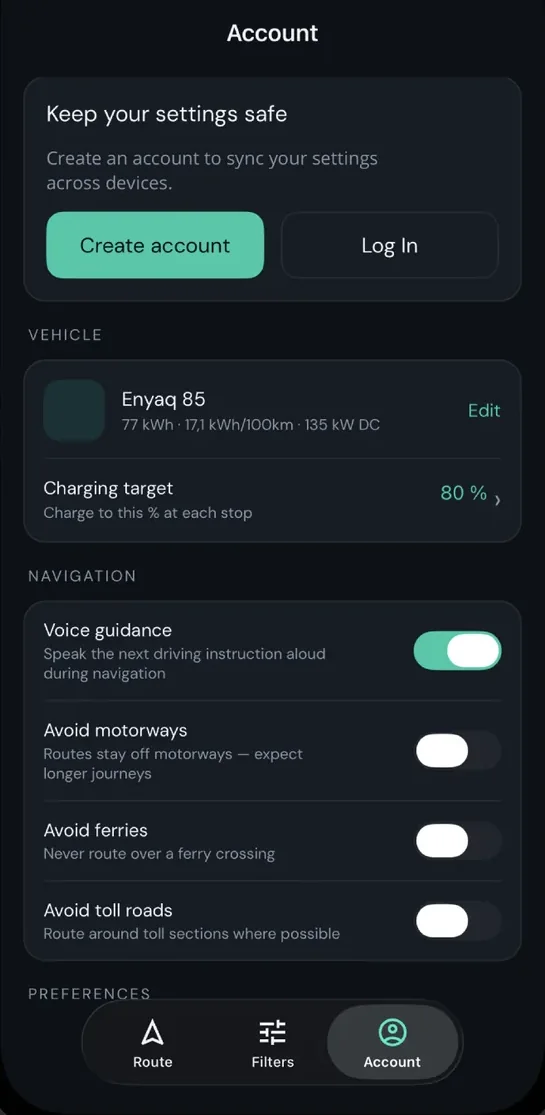
07Account tab
Keep your car and preferences in sync
An account is optional for planning, required for syncing. Filters, vehicles and preferences follow you to a new device.
- Vehicle profile —
- pick your car, so the number of charging stops and the time they take can be estimated.
- Account —
- sync your filters and settings to another device.